

Connect Pennyweight to ChatGPT
ChatGPT can connect to Pennyweight as a custom plugin today. It works through ChatGPT’s Developer mode, which is a beta feature — the connection is real and functional, but expect the occasional rough edge. The seven steps below are a real setup, screenshot by screenshot.
Before you start
- On the web:you add and use the plugin at chatgpt.com. OpenAI documents Developer mode as a web feature; the mobile and desktop apps don’t expose it.
- Plan:OpenAI lists Developer mode for Pro, Plus, Business, Enterprise, and Education accounts, and its pages don’t fully agree on which of those get the complete tool set. The rollout is still moving — so rather than guess, open your Settings and look for the Developer mode toggle. If it’s there, you can connect.
- On a Business, Enterprise, or Edu workspace an admin has to enable Developer mode and publish the connector before you can use it.
1. Turn on Developer mode
You can’t add a custom plugin without it, and it isn’t on by default. In ChatGPT on the web, open Settings → Plugins, then open Advanced settings and switch Developer modeon. If you don’t see it there, look under Settings → Security and login— OpenAI has moved this toggle more than once. It’s labeled beta; that’s expected.
2. Start a new plugin
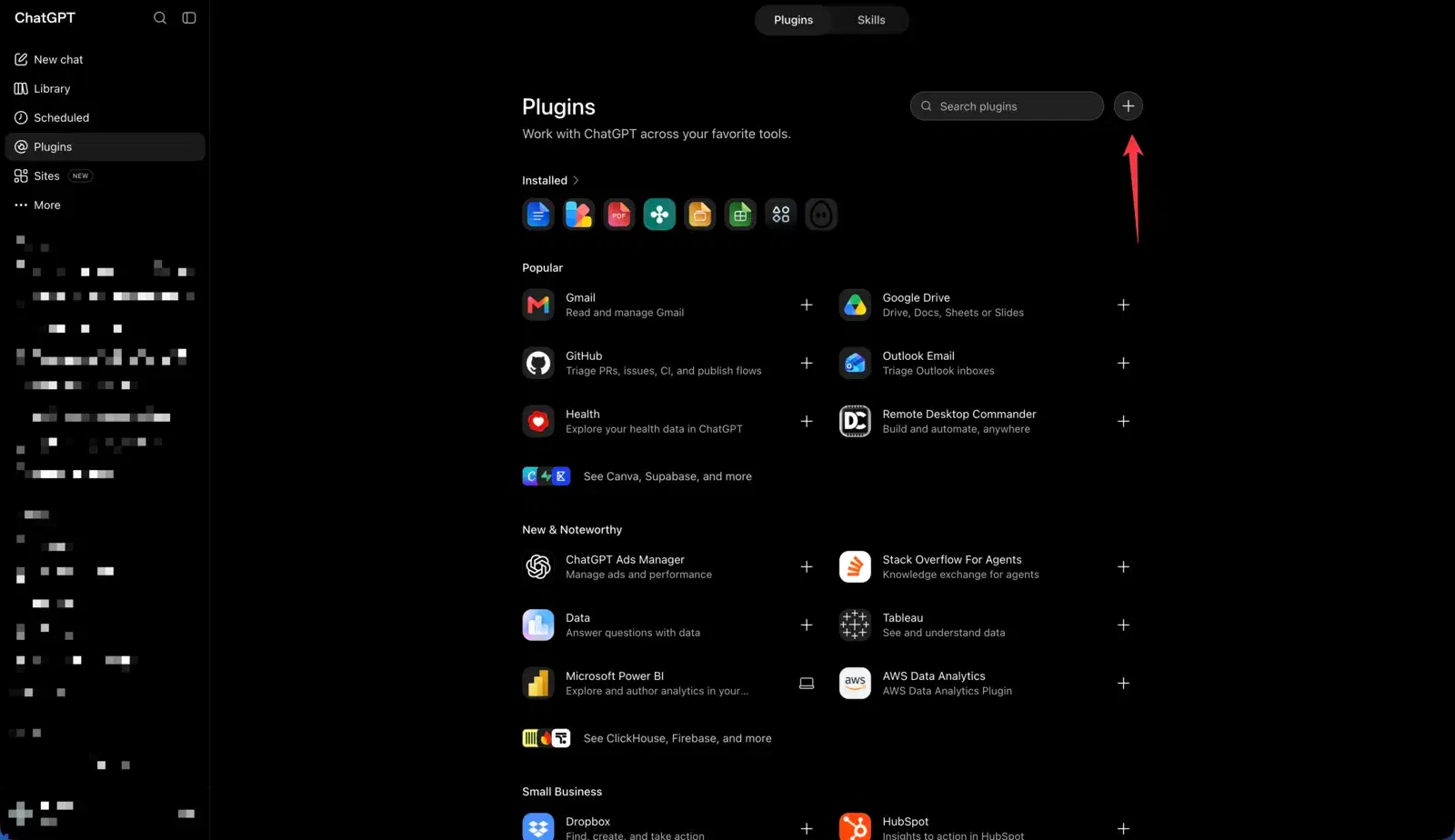
Go to Settings → Plugins and click the + button at the top right of the plugins list.
3. Fill in the plugin details
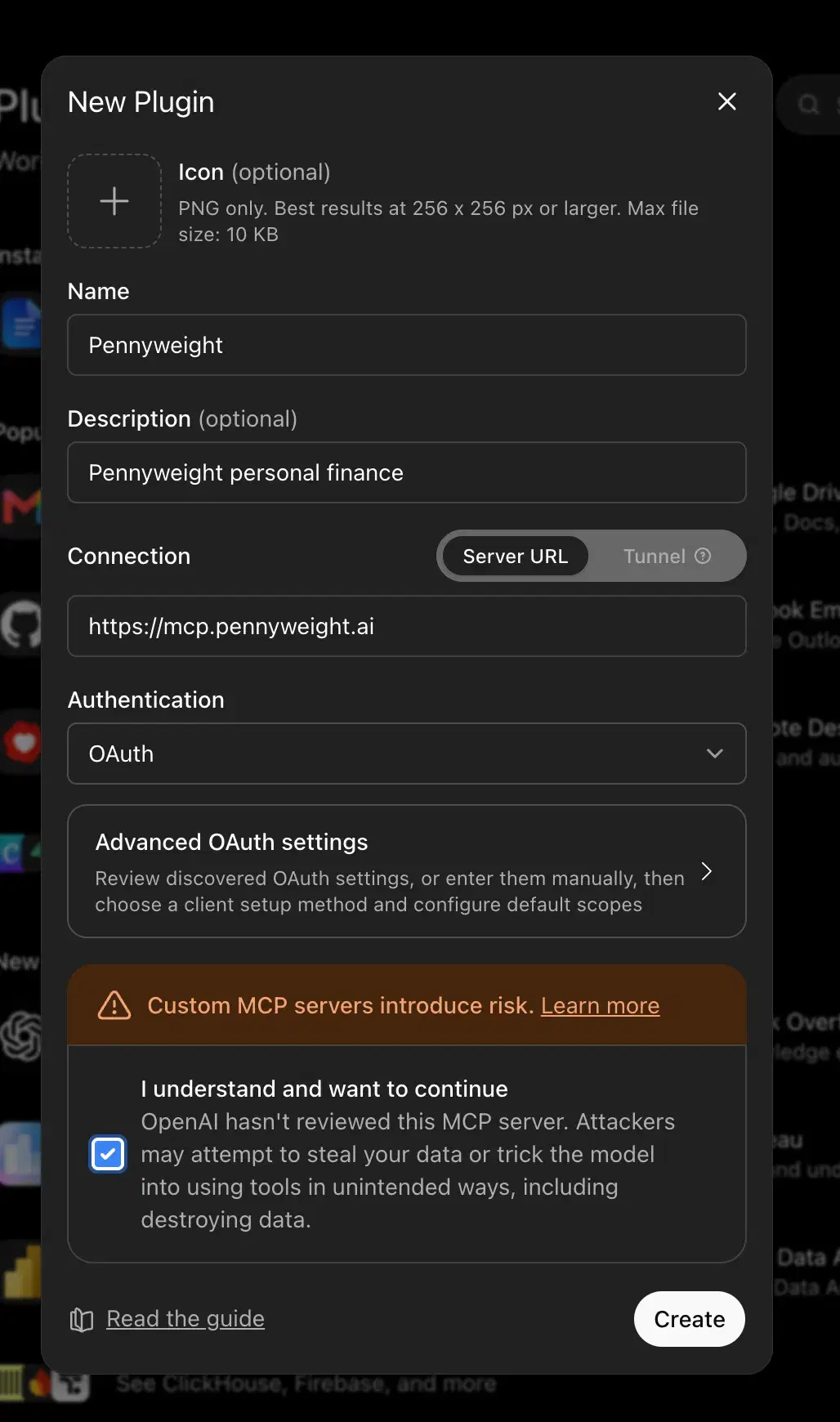
ChatGPT opens a New Plugin dialog. Fill it in like this:
- Icon: optional — skip it.
- Name: Pennyweight.
- Description:optional. Something like “Pennyweight personal finance” is enough.
- Connection: leave it on Server URL (not Tunnel) and paste: .
- Authentication: choose OAuth. You don’t need to open Advanced OAuth settings — Pennyweight advertises what ChatGPT needs, so it discovers the rest itself.
- Tick I understand and want to continue. ChatGPT shows this warning for every custom MCP server because OpenAI hasn’t reviewed it — it isn’t specific to Pennyweight.
- Click Create.
4. Sign in with Pennyweight
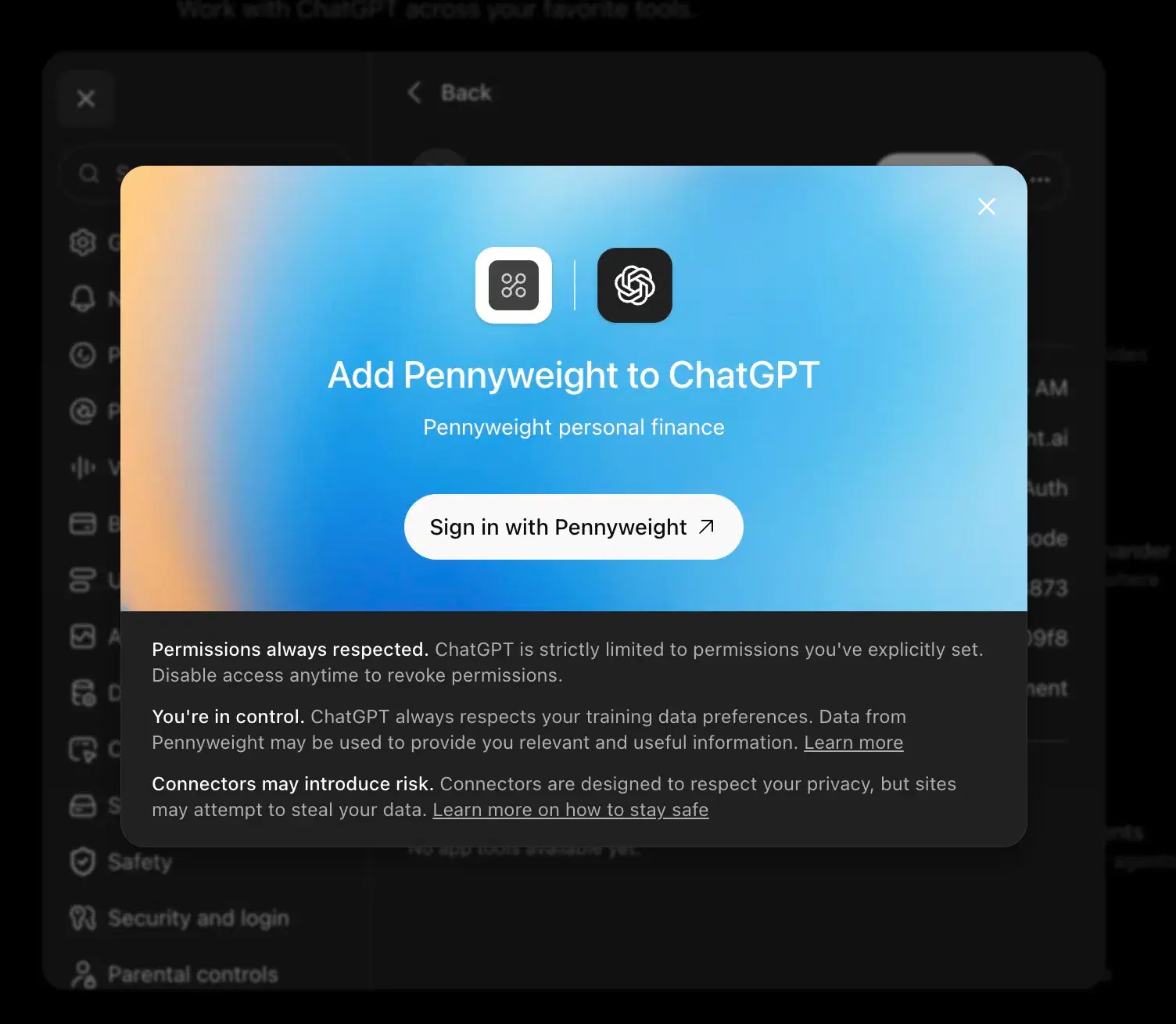
ChatGPT shows an Add Pennyweight to ChatGPT panel. Click Sign in with Pennyweight.
5. Authorize on Pennyweight
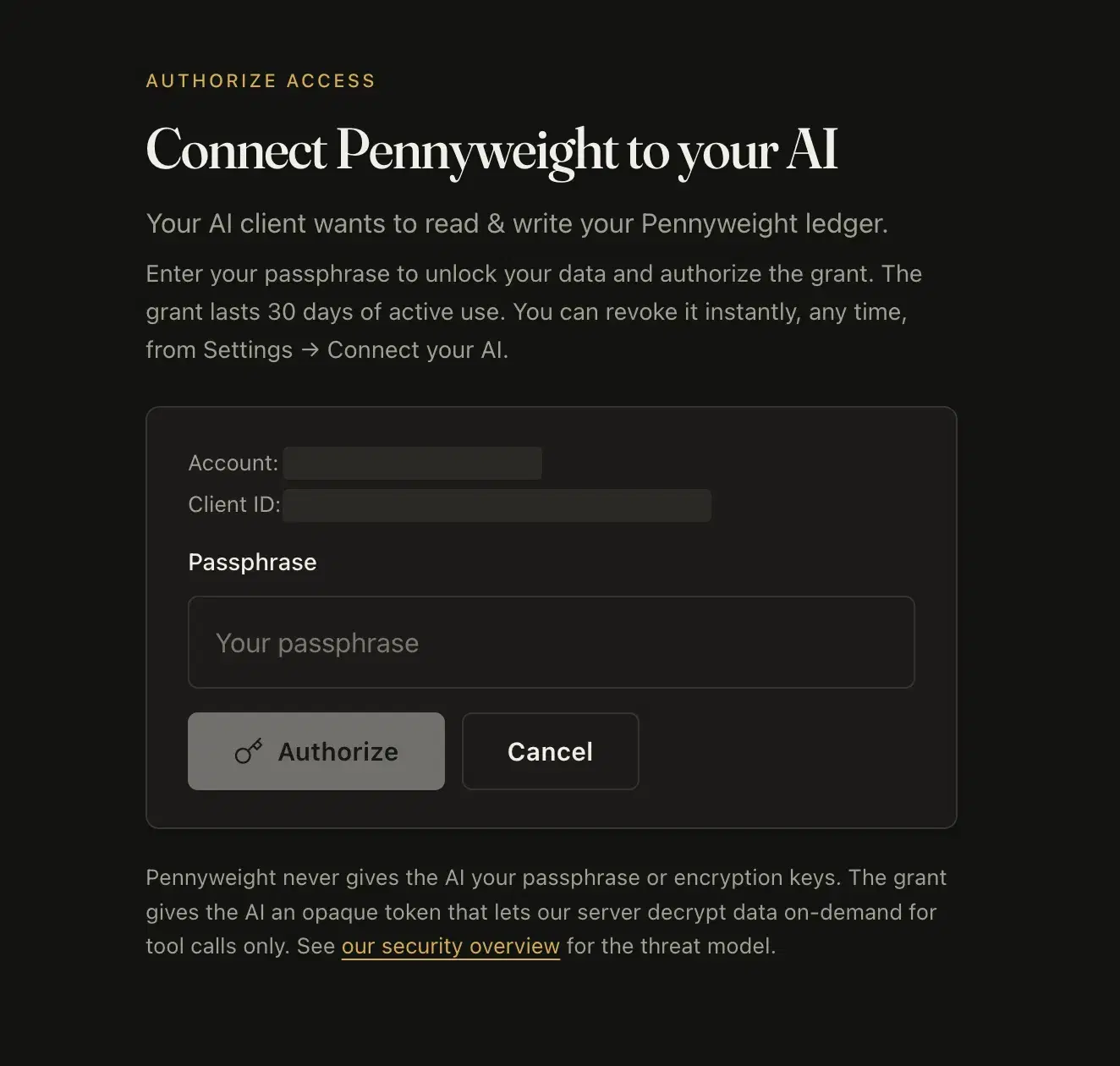
You land on Pennyweight’s Connect Pennyweight to your AI page. It names the account being connected and the client ID, and states plainly that the AI is asking to read and write your ledger. Enter your passphrase and click Authorize— then you’re sent back to ChatGPT.
6. Check it connected
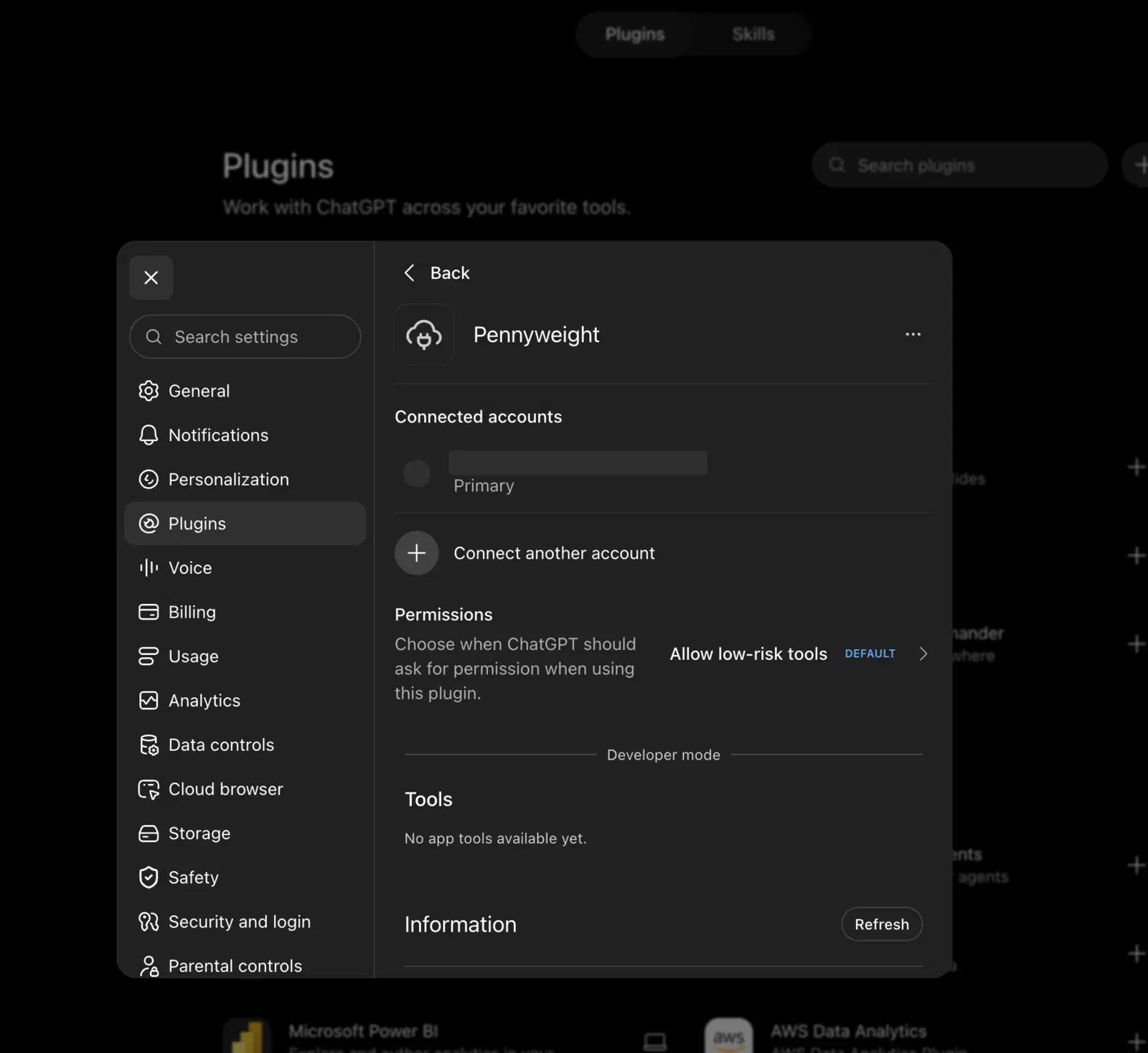
Back in Settings → Plugins, open Pennyweight. Your account now appears under Connected accounts. Permissions can stay on the default, Allow low-risk tools.
Ignore the Tools section.It says “No app tools available yet” even when the connection is working perfectly. That list populates lazily; it is not a sign that anything failed. The real test is the next step.
7. Ask it something
Open a new chat and ask: “Using Pennyweight, show me my account balances.” ChatGPT calls Pennyweight and comes back with your balances. That’s the connection working end to end.
From then on you can pick Pennyweight from the tools menu on the message box, or type @ and choose it. You select it per message, not once per conversation — naming it in your question, as above, is the most reliable way to make sure it gets used.
Reading works everywhere; writing depends on your plan
Most of what you’ll do — asking questions, pulling reports, running a tax summary — only reads your ledger. About half of Pennyweight’s tools also change things: categorizing, splitting, importing, creating rules.
ChatGPT asks you to confirm in the conversation before it runs any of those — that’s the Permissionssetting from step 6 doing its job. OpenAI also limits write actions by plan: on Pro, custom MCP plugins are documented as read and fetch only, with full read-and-write on Business, Enterprise, and Edu. So if Pennyweight answers questions happily but can’t save a change, that’s your plan’s Developer-mode permissions, not a Pennyweight fault. Make the change in the web app, or use a client that allows write tools — Claude does on every plan.
Two more ChatGPT quirks worth knowing: deep research can use Pennyweight but only to read, and agent mode won’t use custom plugins at all.
If you’re on a workspace plan
When an admin publishes the Pennyweight plugin for a Business, Enterprise, or Edu workspace, ChatGPT pins the tool list as it was at approval. We add and improve tools regularly, so ask your admin to refresh or republish it if a newly documented capability isn’t showing up, or if a tool call starts failing for no obvious reason.
A note on uploading statements
The Pennyweight plugin lives in ChatGPT on the web, so share your statements there. Let ChatGPT read the statement in the chat and add the rows for you — see importing without a bank link. Adding transactions is a write action, so ChatGPT will ask you to confirm.
Managing access
You can remove the plugin from Settings → Plugins at any time. See manage & revoke access. The grant renews as you use it and expires after 30 days of inactivity; Pennyweight never gives ChatGPT your passphrase or keys.